Set up Sign in with Google
Using Google sign-in, you can let customers authenticate with their Google accounts on your login page and checkout page.
Steps to set up Google sign-in
-
In the CourseLit dashboard, go to
Settings->Miscellaneous->Login providers.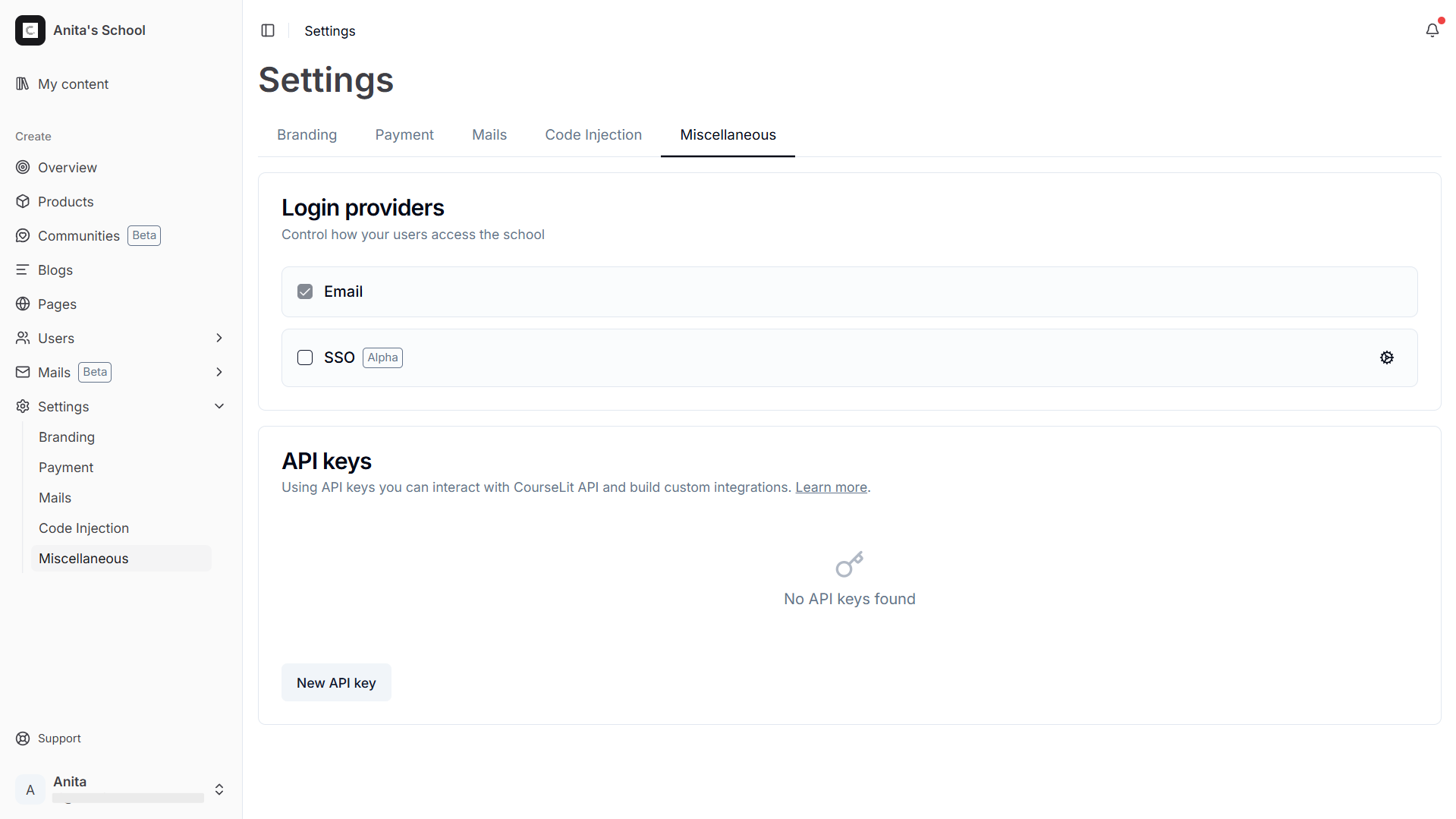
-
Click on the Cog icon next to the Google provider to open its configuration screen.
-
Keep the
School Settingscard open. You will use these values while creating the Google OAuth app:- Authorized redirect URI: Usually
https://<school-url>/api/auth/sso/callback/google - Authorized JavaScript origin: Usually
https://<school-url>
- Authorized redirect URI: Usually
-
Open the Google Cloud Console and create or select the project you want to use.
-
If prompted, configure the OAuth consent screen first:
- Choose the appropriate user type for your use case.
- Add the app name, support email, and authorized domain details requested by Google.
- If your app is in testing mode, add the Google accounts you want to use as test users.
-
In Google Auth Platform, go to
Clients. Click onCreate client.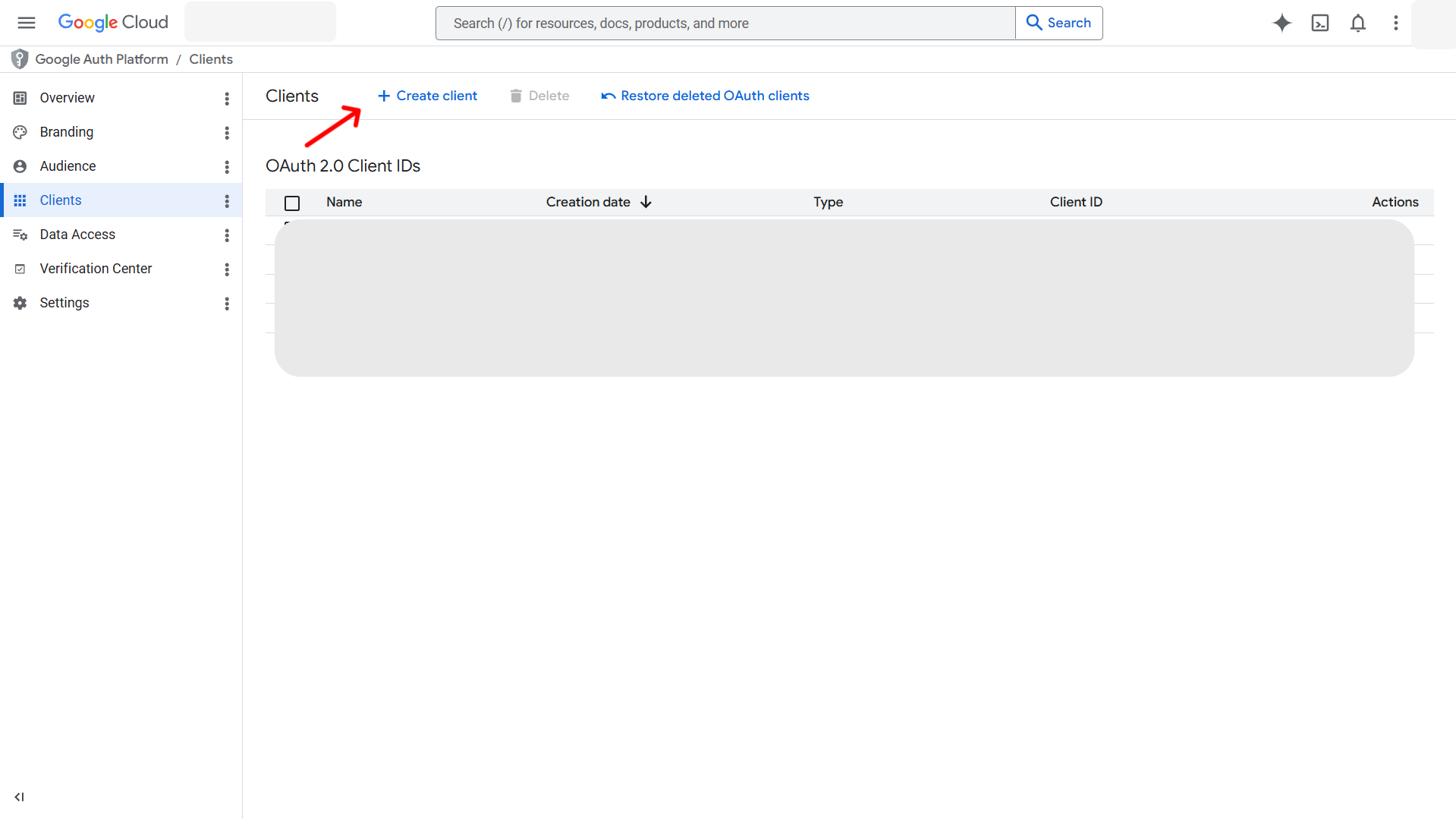
-
Select
Web applicationas the application type. -
In the OAuth client configuration screen, use the values from CourseLit:
- Add the
Authorized JavaScript originshown in CourseLit. - Add the
Authorized redirect URIshown in CourseLit.
- Add the
-
Click
Create, then copy the generatedClient IDandClient secret. -
Return to CourseLit and paste those values into the
Google App Configurationcard. -
Click
Save. -
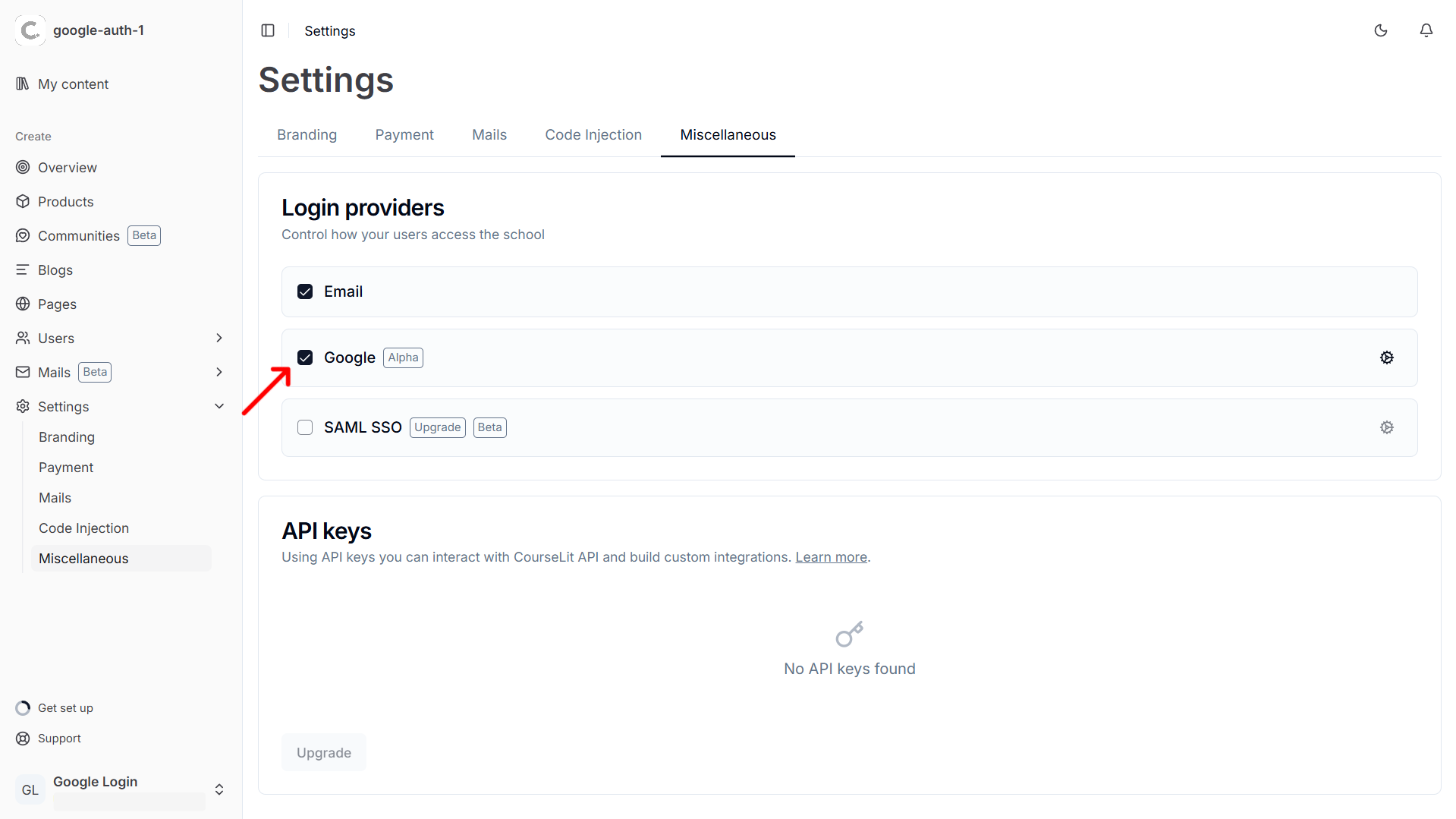
Go back to the
Login providersscreen and enable the Google provider.
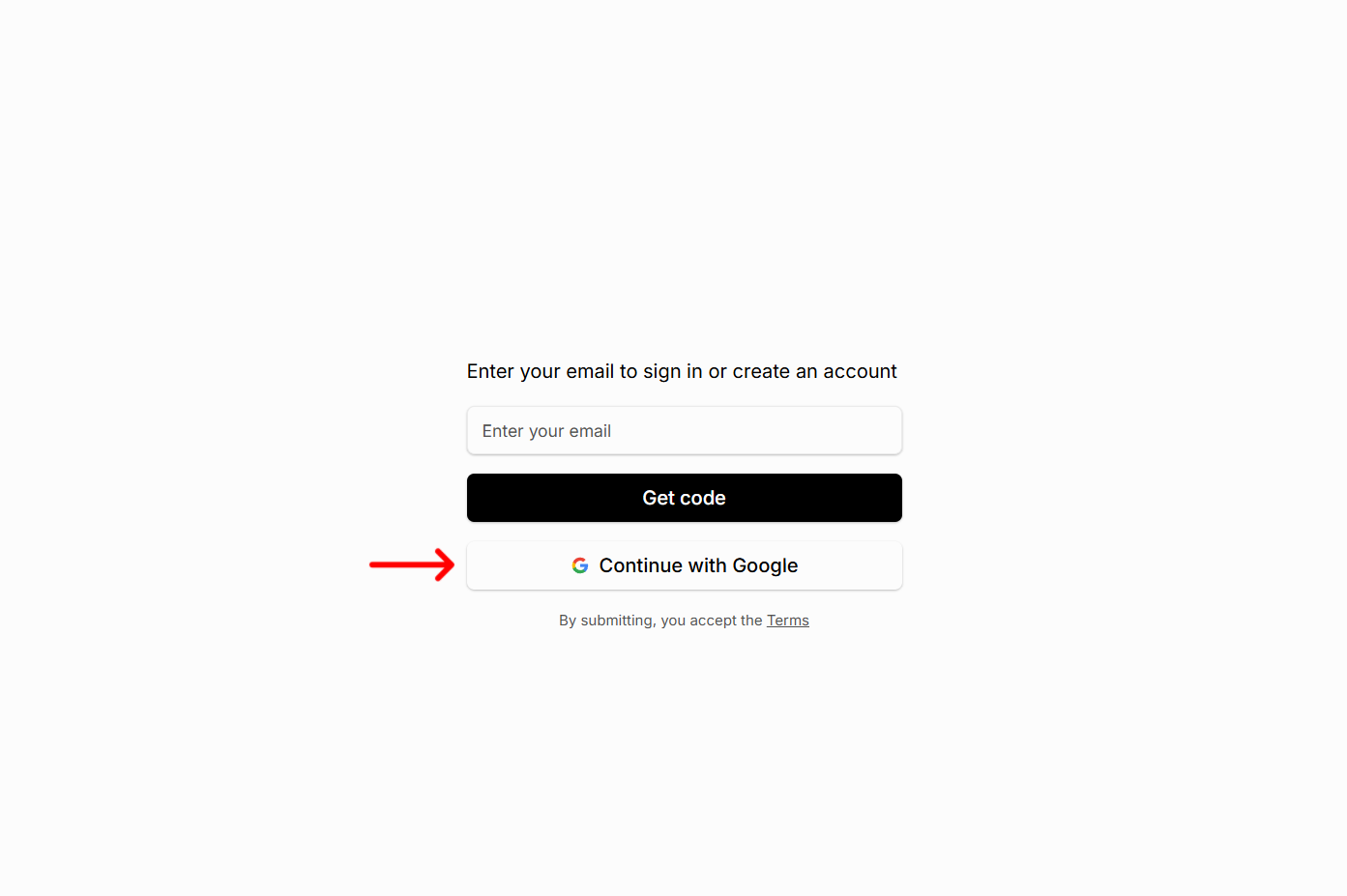
Customer’s experience
When Google login is configured and enabled, customers will see a Continue with Google button anywhere external login providers are shown, such as the login page and checkout page.
Before you disable Google sign-in
Disabling the Google provider does not delete the users who previously signed up with Google. Their CourseLit account, purchases, and progress remain intact.
However, they will no longer be able to use Continue with Google to access that account. To keep signing in, they need another enabled login method that maps to the same email address, such as email login.
Troubleshooting
1. I get a redirect URI mismatch error
Make sure the Authorized redirect URI in Google Cloud Console exactly matches the value shown in CourseLit, including the protocol (https://) and the full path.
2. I get an origin mismatch error
Make sure the Authorized JavaScript origin in Google Cloud Console exactly matches the value shown in CourseLit.
3. Only some Google accounts can sign in
If your OAuth app is still in testing mode, Google only allows the accounts listed as test users to sign in. Add the required accounts as test users or publish the app when you are ready.
Stuck somewhere?
We are always here for you. Come chat with us in our Discord channel or send a tweet at @CourseLit.