Templates
Email templates help you build a reusable library of branded email layouts. Once saved, you can use them while creating broadcasts or sequence emails.
This feature is currently in beta, which means you may encounter bugs. Please report them in our Discord group if you run into any issues.
Before you start: If your school is hosted on courselit.app, you need to get approved to send marketing emails. Request access here.
Templates Hub
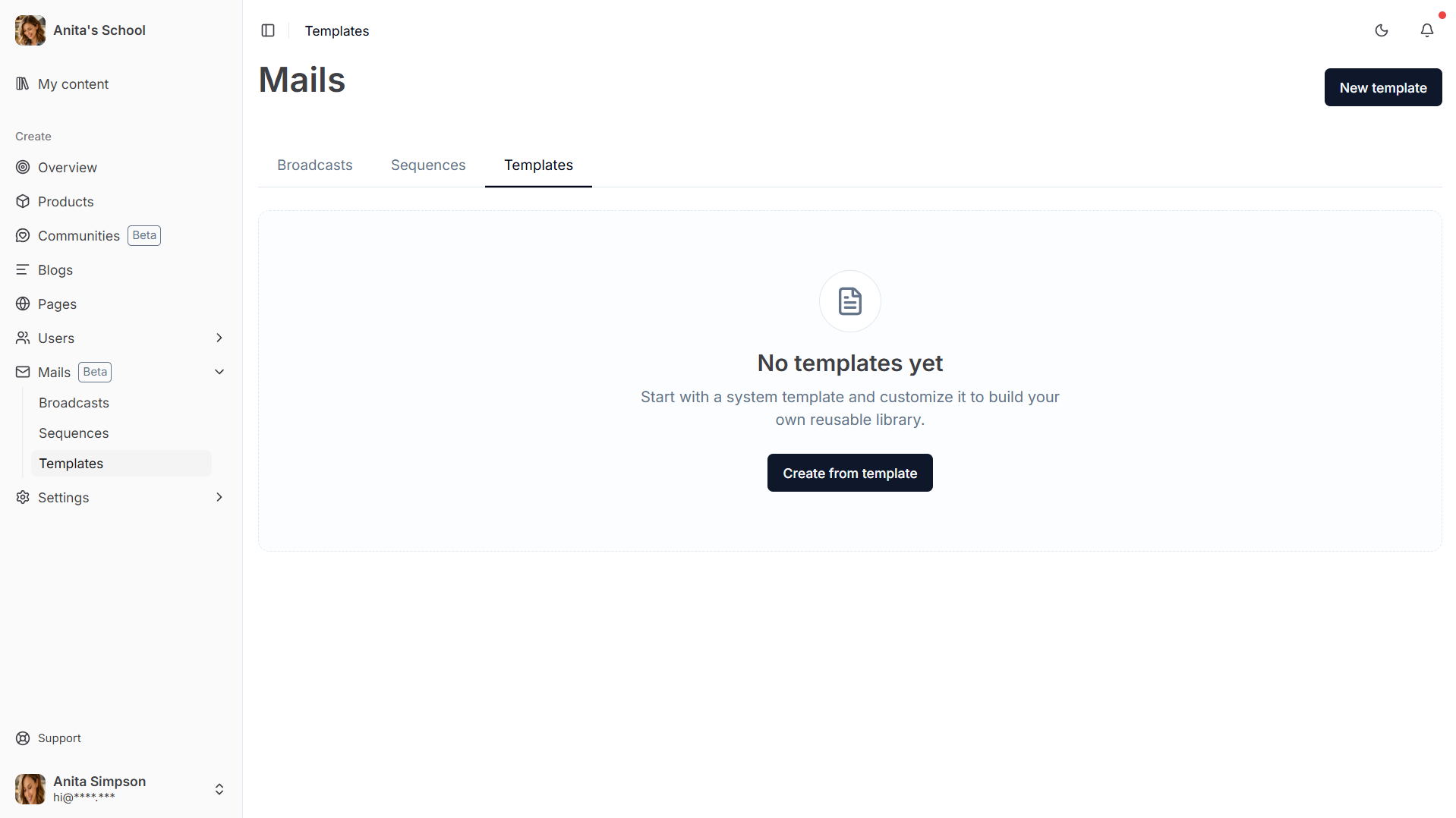
From the Dashboard, go to Mails and open the Templates tab.
Here, you will see all templates you have saved.
- If this is your first template, click
Create from template. - If you already have templates, click
New template.
Create a Template
-
Open the
Templatestab and clickCreate from template(orNew template). -
You will be taken to the
Choose a templatescreen.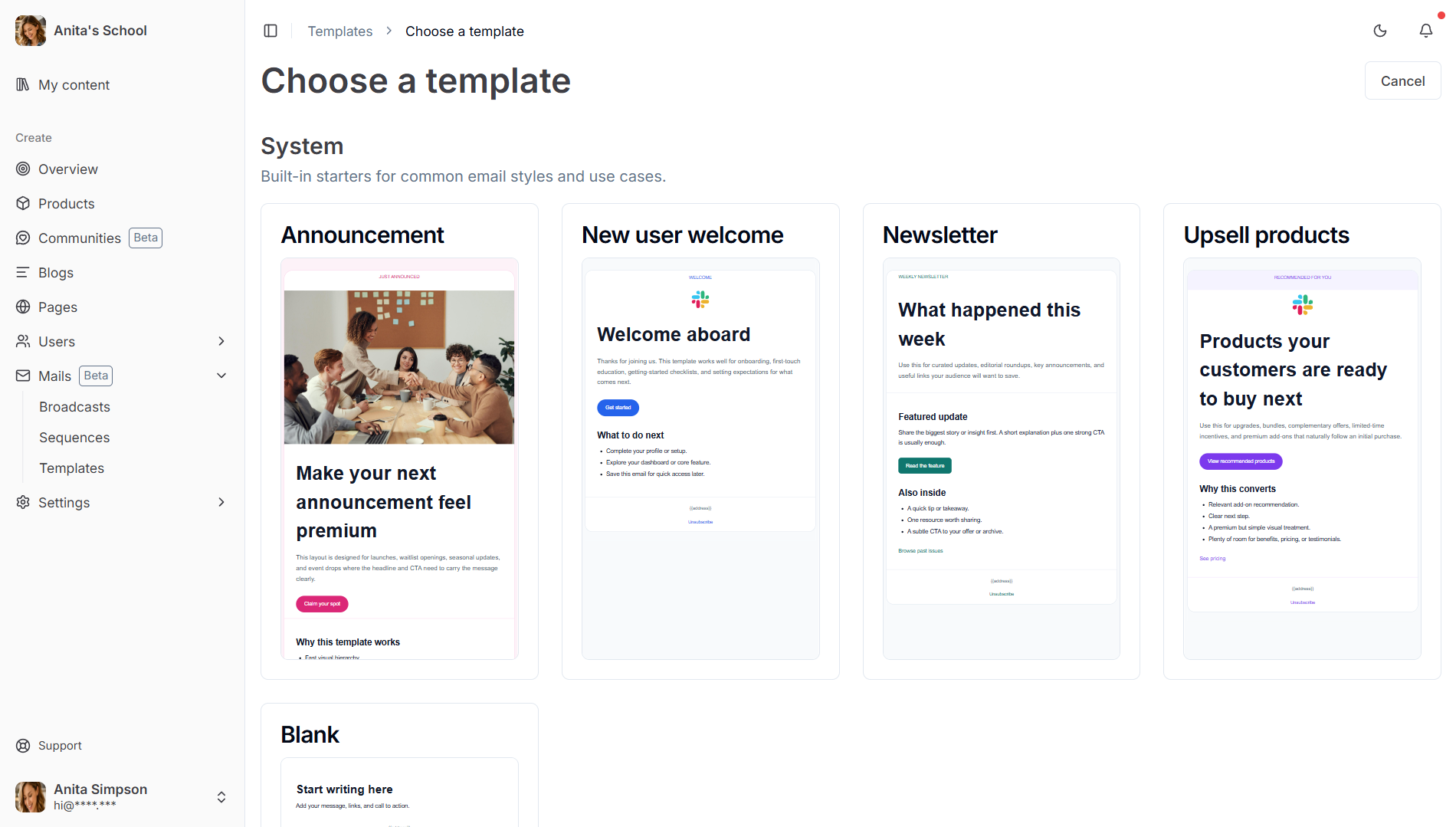
-
Review the available sections:
- System: Built-in starter templates.
- My templates: Your saved templates.
-
Click any template card in the
Systemsection to start from it.
CourseLit will create a new custom template and open its Manage screen.
Edit a Template
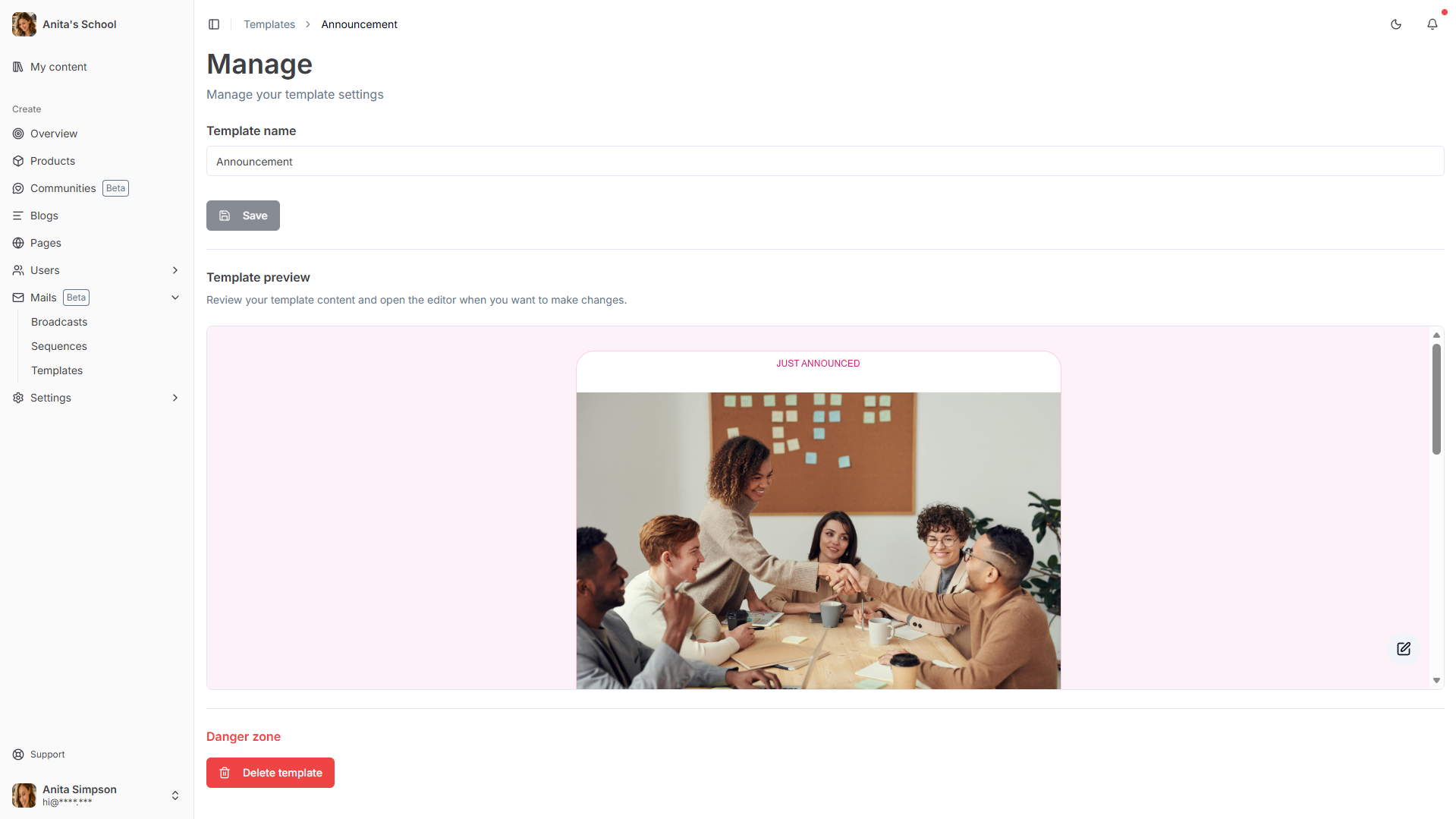
On the Manage screen, you can control the template settings and content.
Edit title
- Update the
Template name. - Click
Saveto persist the new name.
Edit content
-
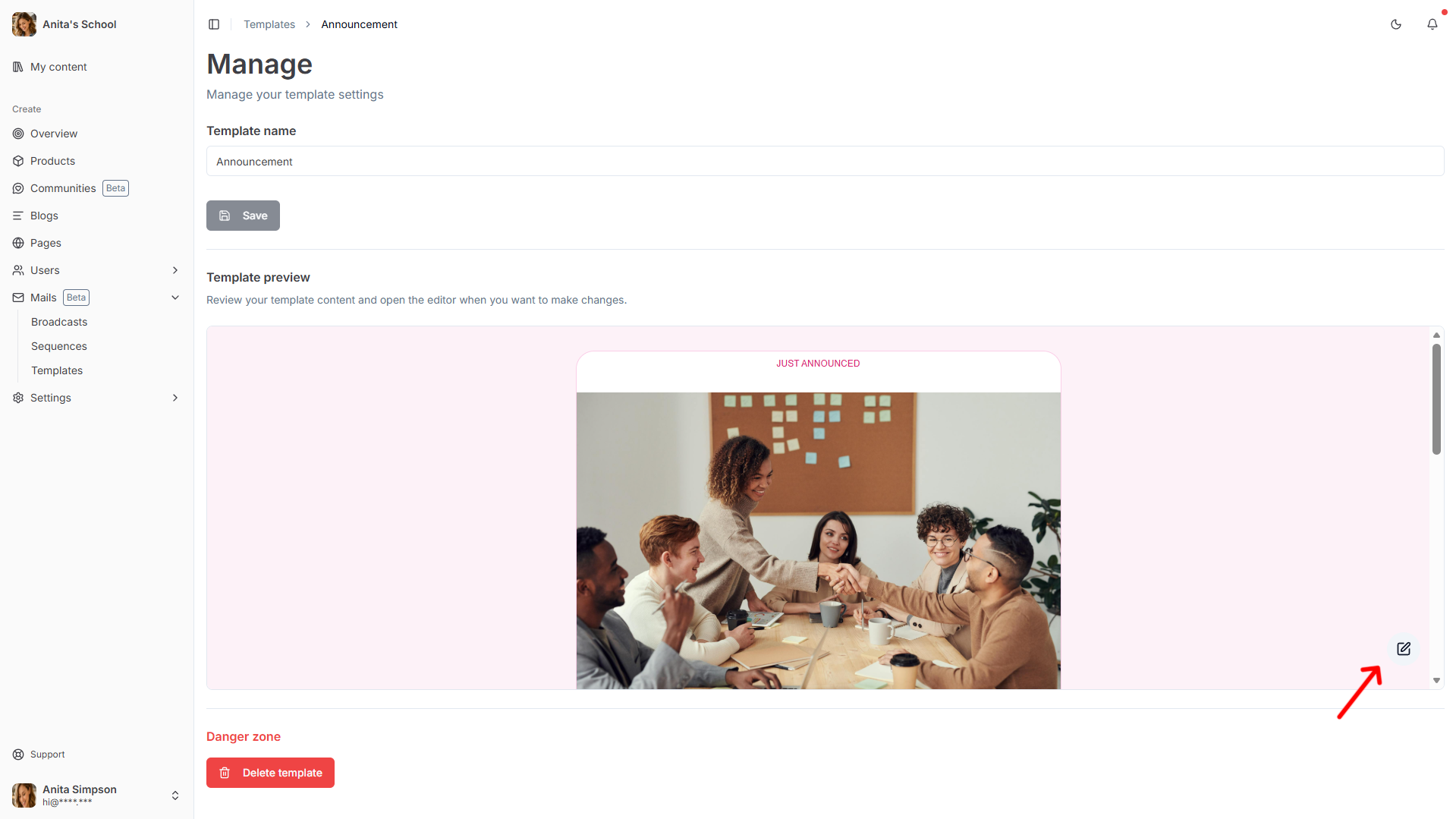
Click the edit button on the preview (pencil icon) to open the full email editor.
-
Edit blocks, styles, and variables in the editor.
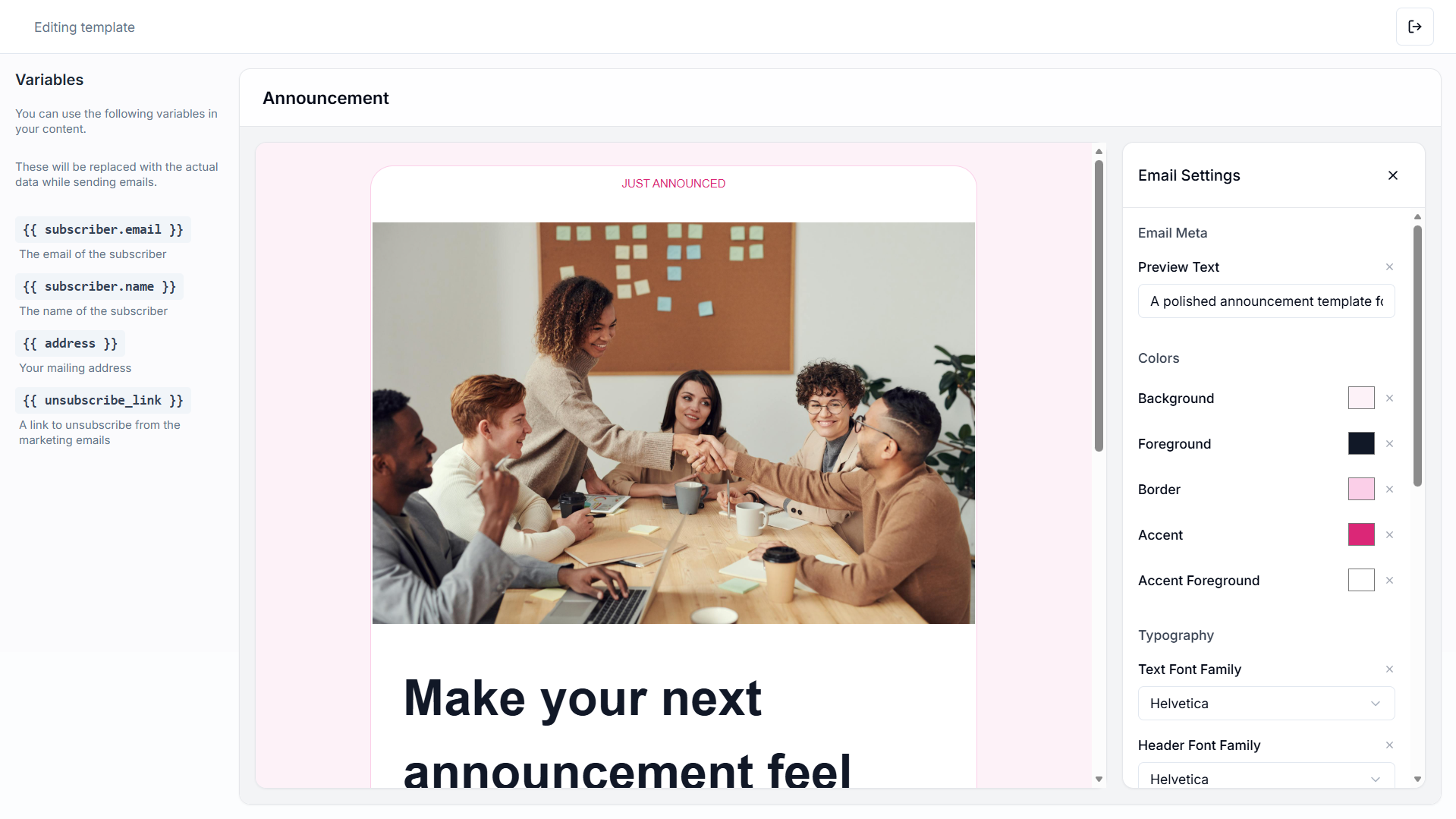
Template content is auto-saved while editing.
- Click
Exitto return to the templateManagescreen.
Use Templates in Broadcasts and Sequences
You can use templates while creating emails:
-
Go to
Mails. -
Click
New broadcastorNew sequence. -
On the
Choose a templatepage, select one from:System(starter templates)My templates(your saved templates)
-
Continue editing subject, audience/trigger details, and send settings as needed.
You can also add a template to an existing sequence by creating a new email in that sequence and selecting a template.
Delete a Template
- Open
Mails→Templates. - Open the template you want to remove.
- In
Danger zone, clickDelete template. - Confirm deletion in the dialog.
Template deletion is permanent and cannot be undone.
Next Steps
Now that you know how templates work, you can:
- Send one-off broadcasts
- Set up automated email sequences
- Track your email performance with analytics
Stuck Somewhere?
We are always here for you. Come chat with us in our Discord channel or send a tweet to @CourseLit.