 CourseLit Docs
Preview a course
Preview a course before learners see it
Course preview lets course managers open the learner-facing course viewer without enrolling in the course. Use it to review the course experience before publishing, while editing unpublished lessons, or while checking drip schedules and section order.
Preview mode is different from making a lesson available as a free preview. Lesson preview controls what learners can see before enrolling. Course preview is a private review mode for course managers.
Who can preview a course?
Users who can manage the course can preview it. This includes school admins with permission to manage any course, and course creators who have course management permission.
What happens in preview mode?
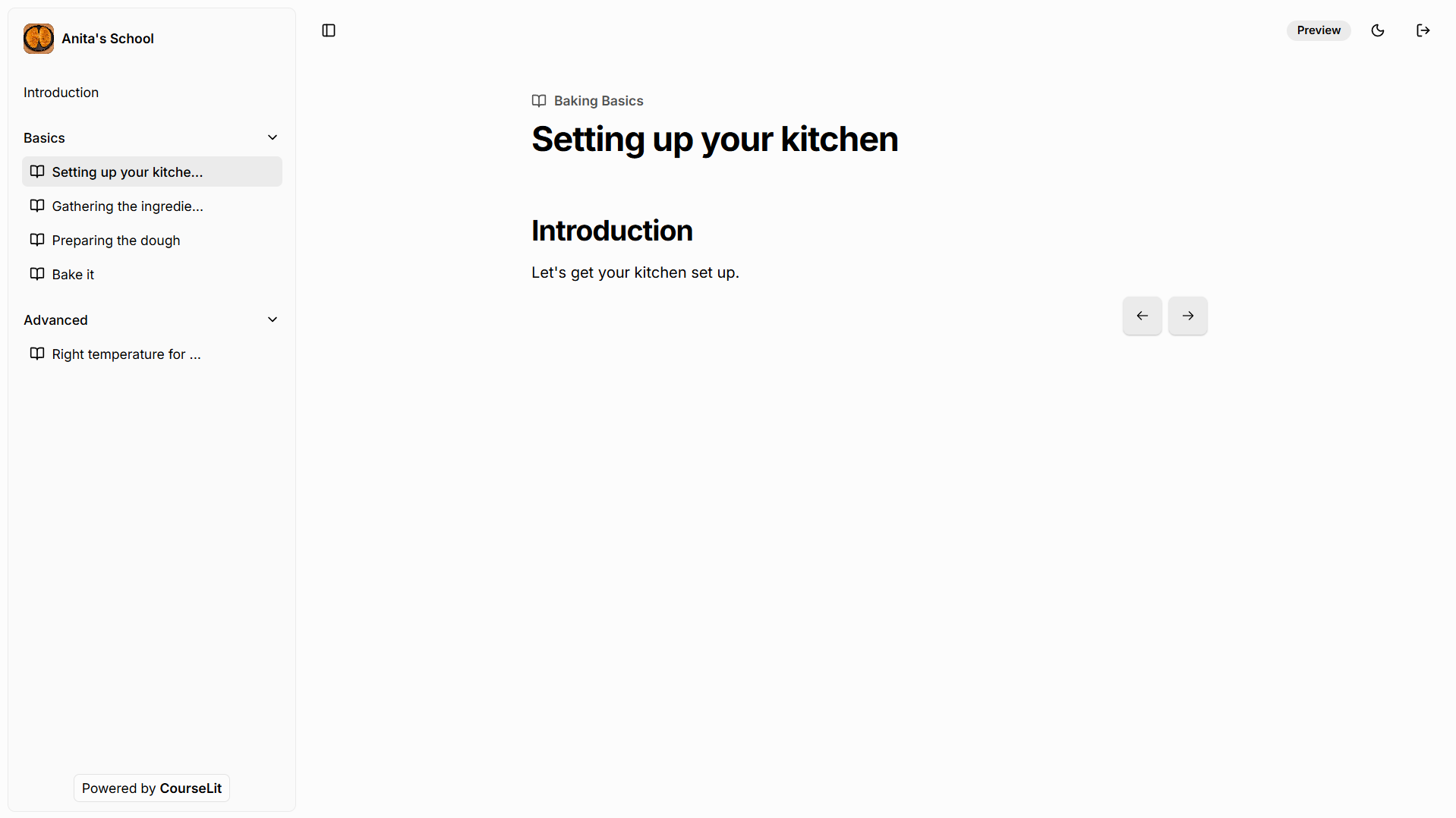
When you preview a course:
- All course content appears unlocked.
- Unpublished lessons are visible.
- Dripped sections and lessons are visible without waiting for the drip schedule.
- A preview badge appears in the course viewer.
- Lesson completion and learner progress are not recorded.
- The exit button returns you to the product dashboard you opened the preview from.
Steps to preview a course
-
From the
Productssection in the dashboard, select your course to open its product dashboard. -
Open the
Actionsmenu. -
Click
Preview.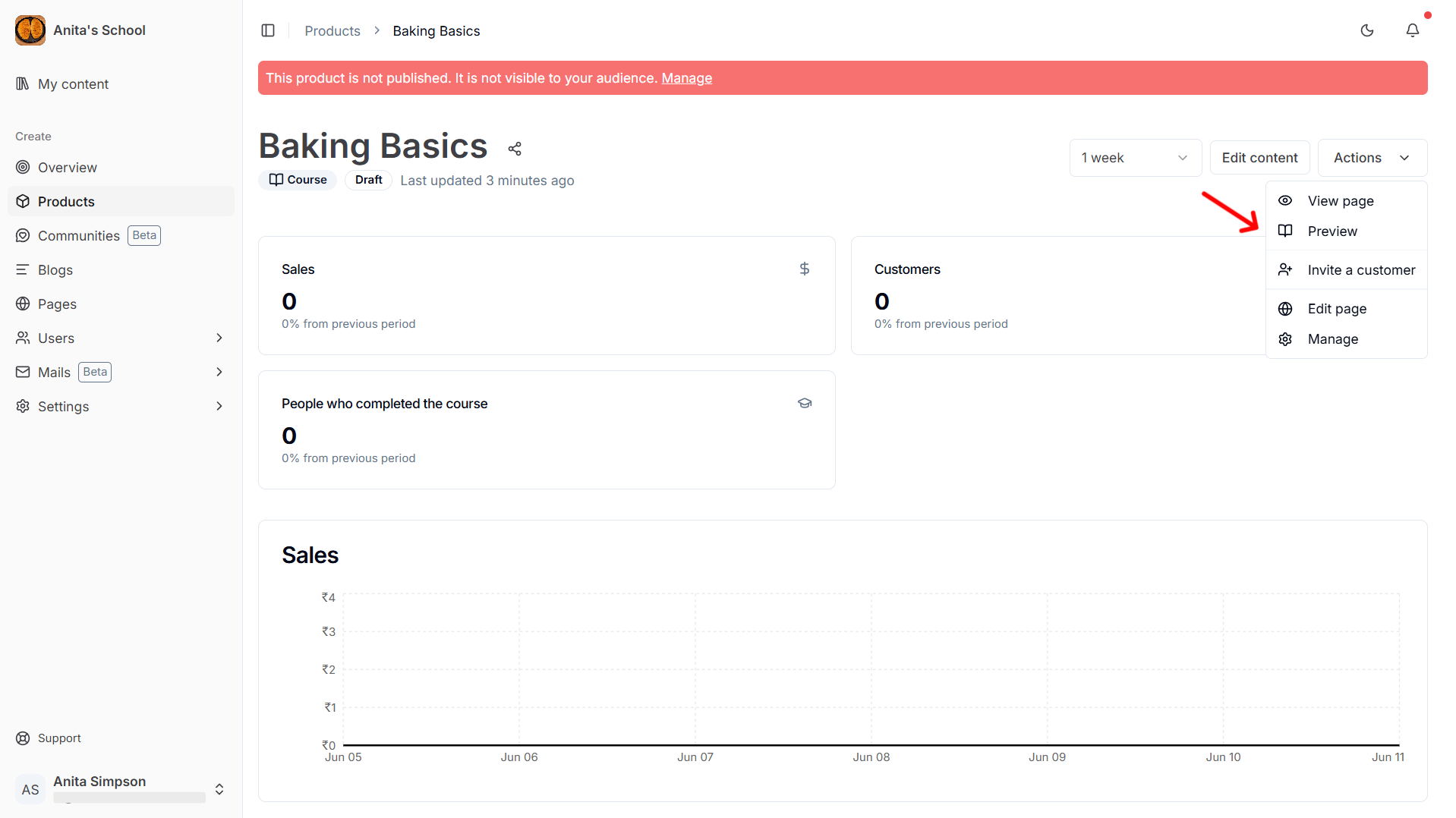
-
Review the course in the course viewer.
-
Click the exit button when you are done. You will return to the course product dashboard.
Notes
- Preview mode does not publish your course or lessons.
- Preview mode does not enroll you in the course.
- Preview mode does not change customer reports, progress, or completion data.
- Quiz submissions and previewing SCORM content are not supported in preview mode.