 CourseLit Docs
Discussions
Enable and manage lesson-level discussions for your online course
Course Discussions let learners ask questions, share insights, and have conversations directly inside the lesson they are watching. Each lesson has its own independent discussion thread, keeping conversations in context.
The feature is currently in beta, which means you may encounter bugs. Please report them in our Discord group if you run into any.
Enable discussions for a course
Discussions are disabled by default. A product admin must turn them on before learners can participate.
- Go to Dashboard → Products and open your course.
- Click Manage to open the course settings.
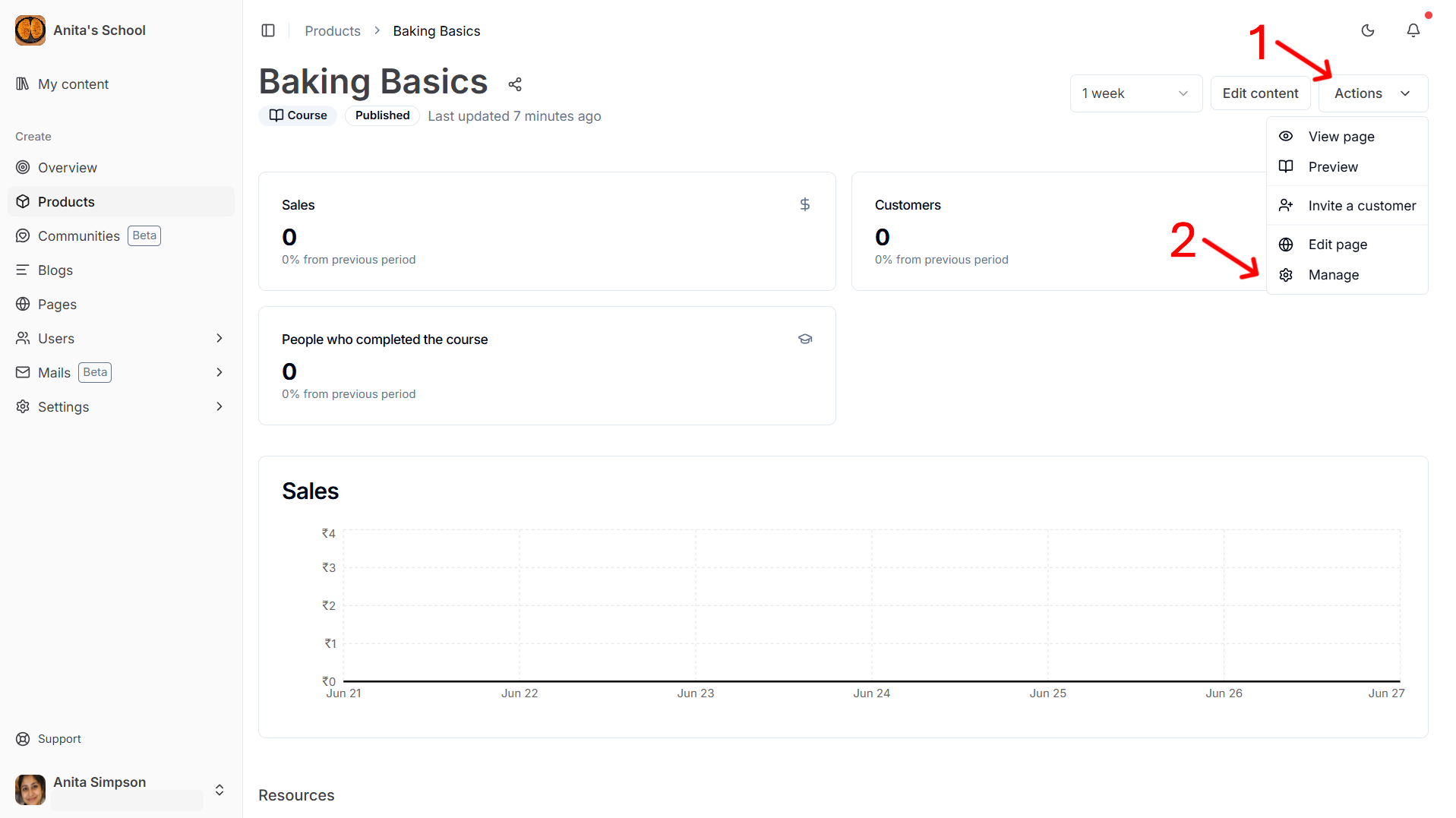
- Find the Discussions section and toggle discussions on.
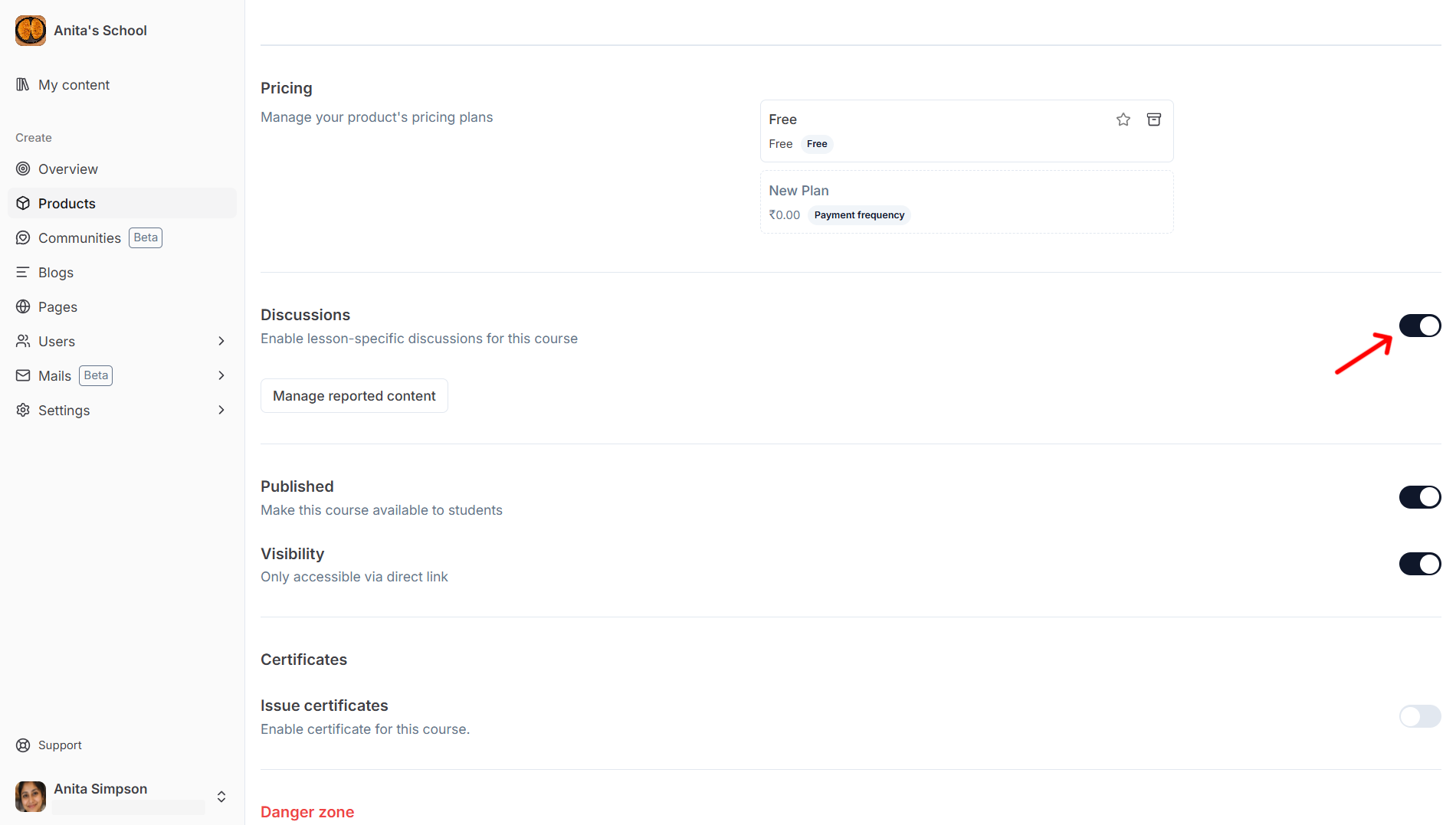
Once enabled, enrolled learners and product admins (via preview mode) will see a discussion icon in the course viewer.
Disabling discussions later hides the panel and blocks new activity, but existing comments and replies are preserved. Re-enabling discussions restores the full history.
Viewing discussions
Discussions are accessible to enrolled learners and product admins only.
- Enrolled learners — open the course viewer and navigate to any lesson.
- Product admins — click the Preview option from the product dashboard to open the course viewer, then navigate to any lesson.
Once inside the course viewer, click the bubble icon in the header to open the discussion panel for the current lesson.
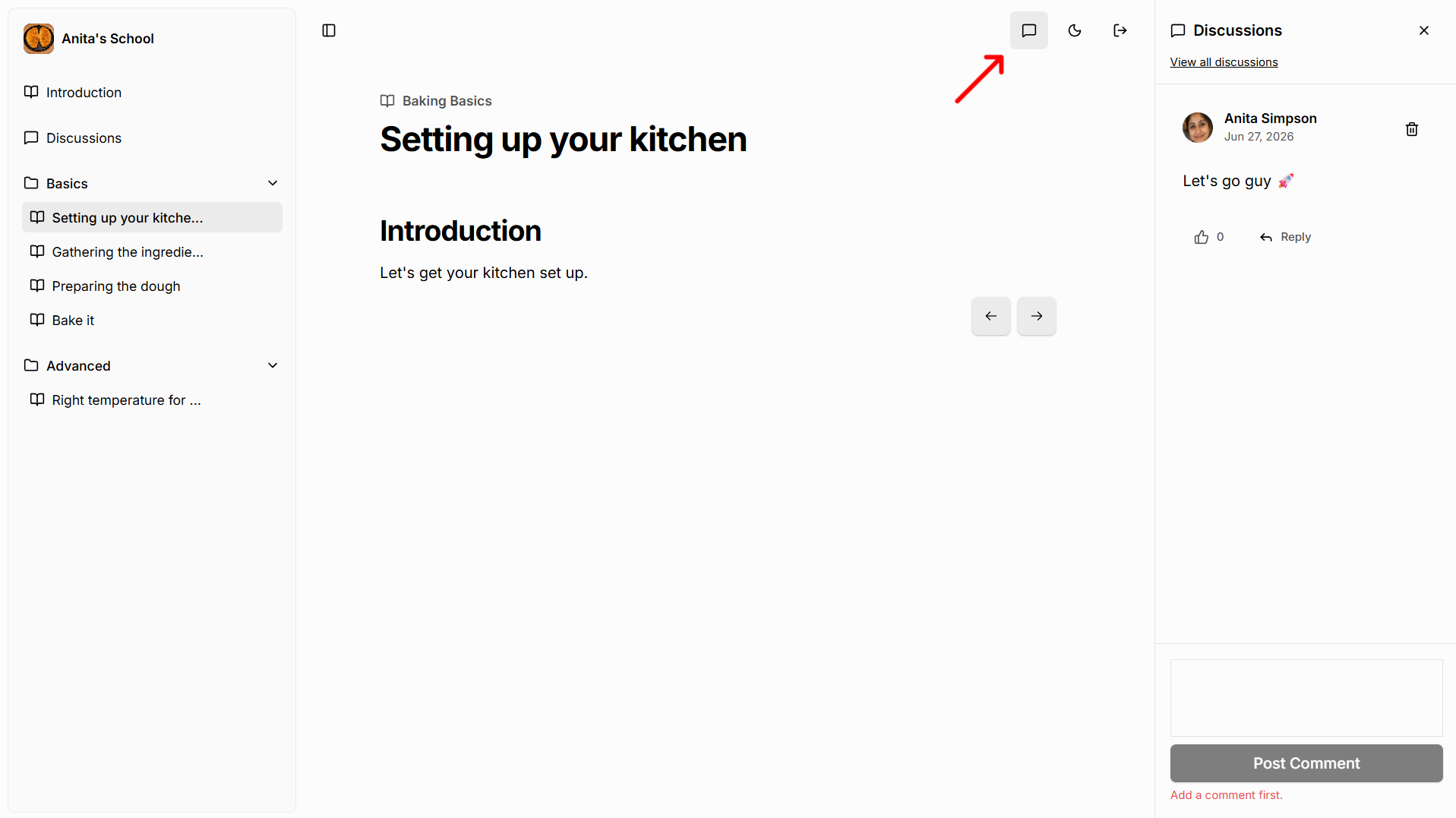
The panel shows only the discussion for the lesson you are currently viewing. Guests and non-enrolled users cannot see or access the discussion panel, even when a lesson is publicly previewable.
Posting a comment
Type your comment in the composer at the bottom of the discussion panel and click Post. The composer accepts rich text so you can format your message.
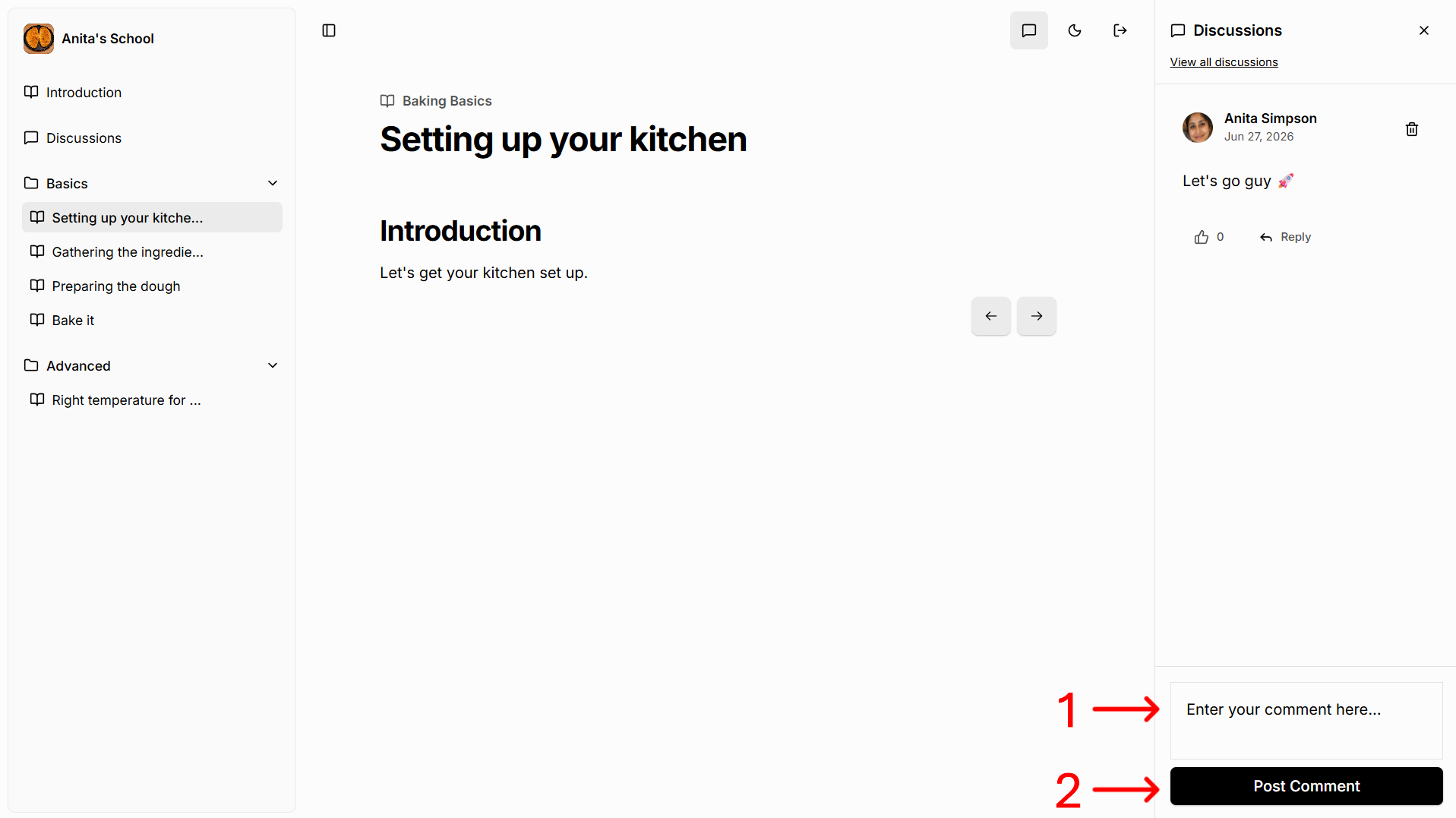
Comments appear newest first at the top of the panel.
Replying to a comment or reply
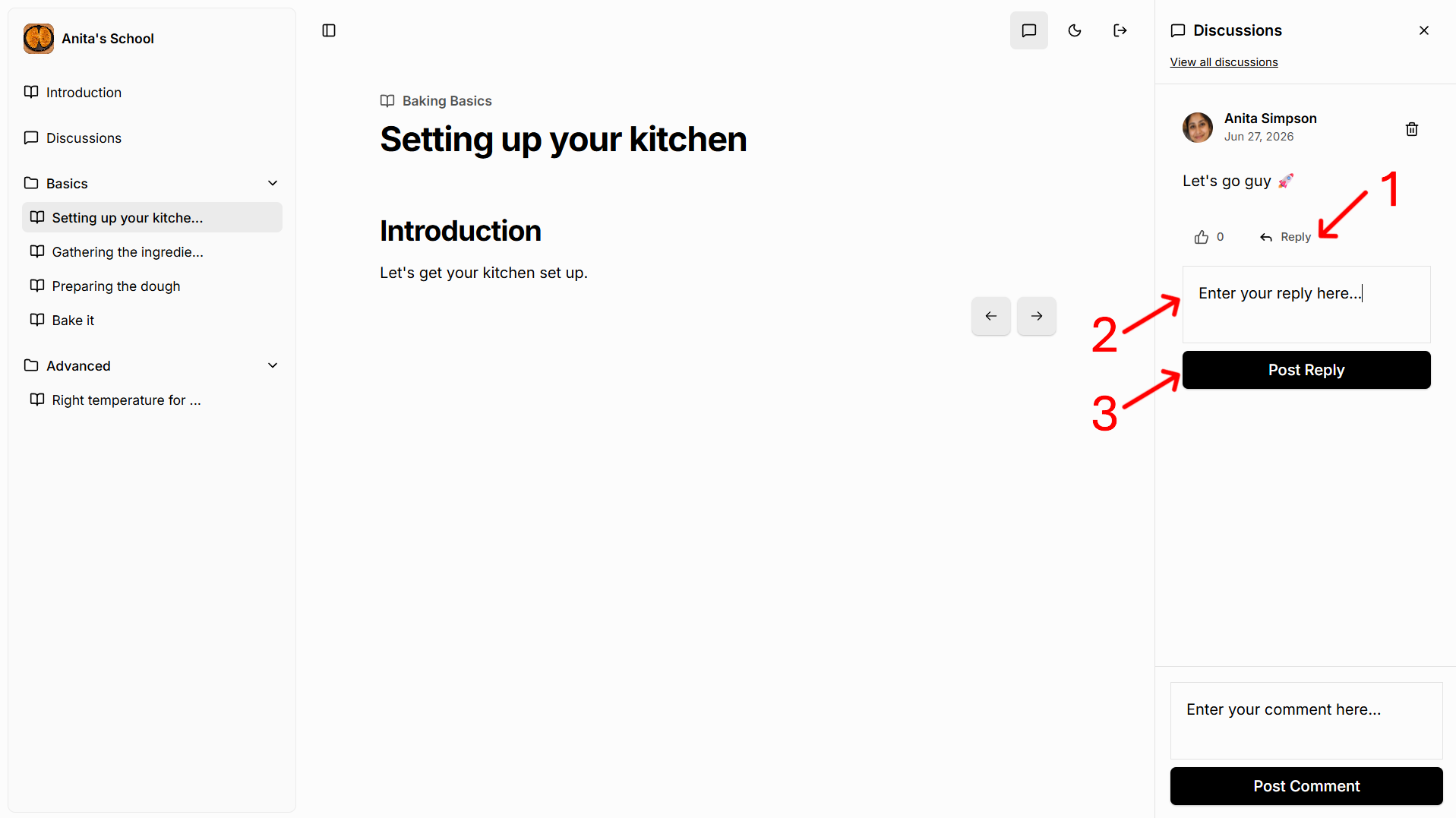
Click Reply under any comment or reply to open the composer targeted to that thread. Your reply will appear under the same top-level comment regardless of which reply you clicked.
Liking comments and replies
Click the thumbs-up icon on any comment or reply to like it. Click again to remove your like. The like count updates immediately.
Deleting your own content
Click the trash icon on your own comment or reply to delete it. Deleted content is replaced with a placeholder so the thread structure stays intact. You cannot delete other participants' content.
Reporting content
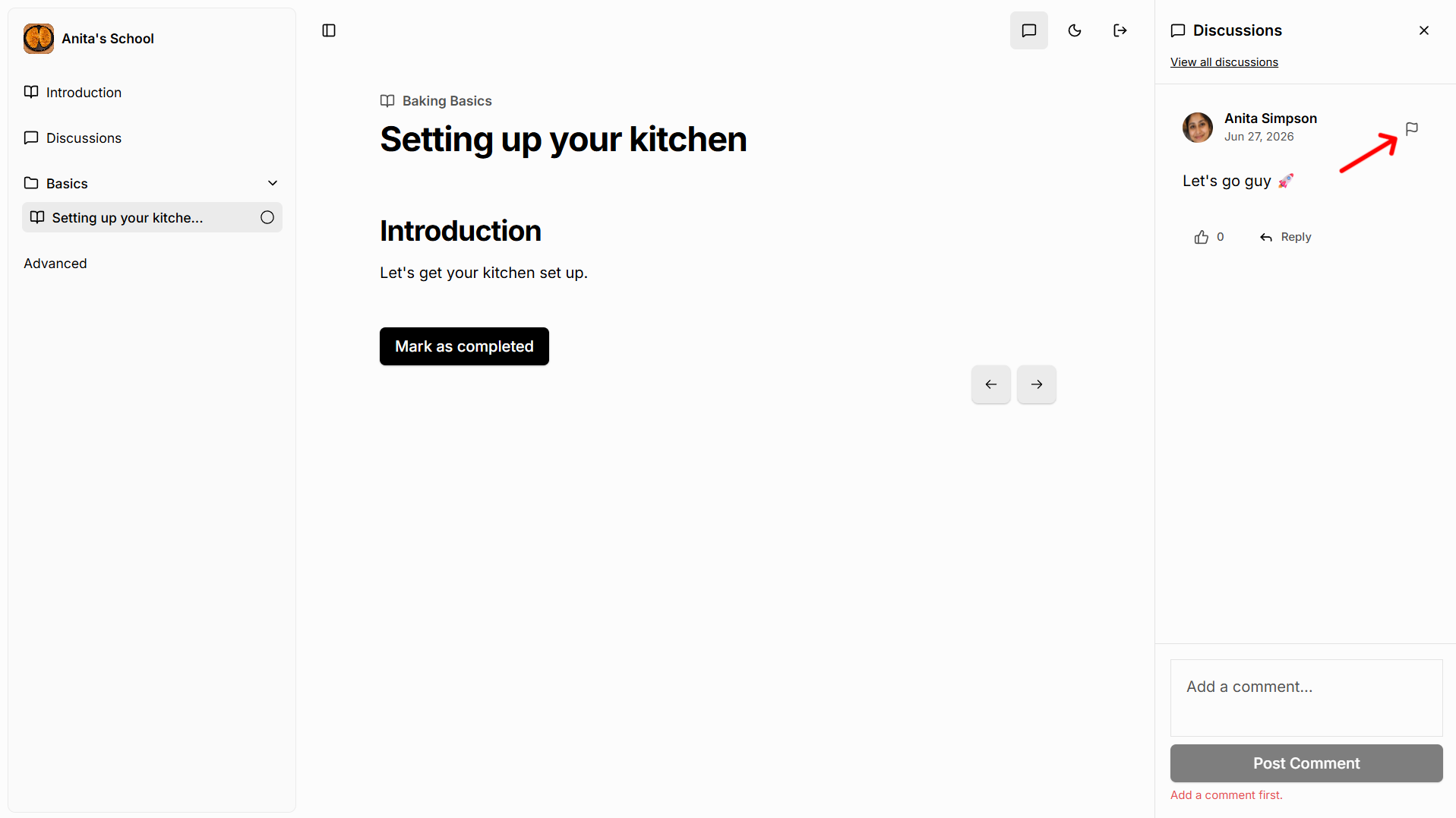
Click the flag icon on another participant's comment or reply to report it for admin review. You will be prompted to provide a reason.
Viewing all lesson discussions
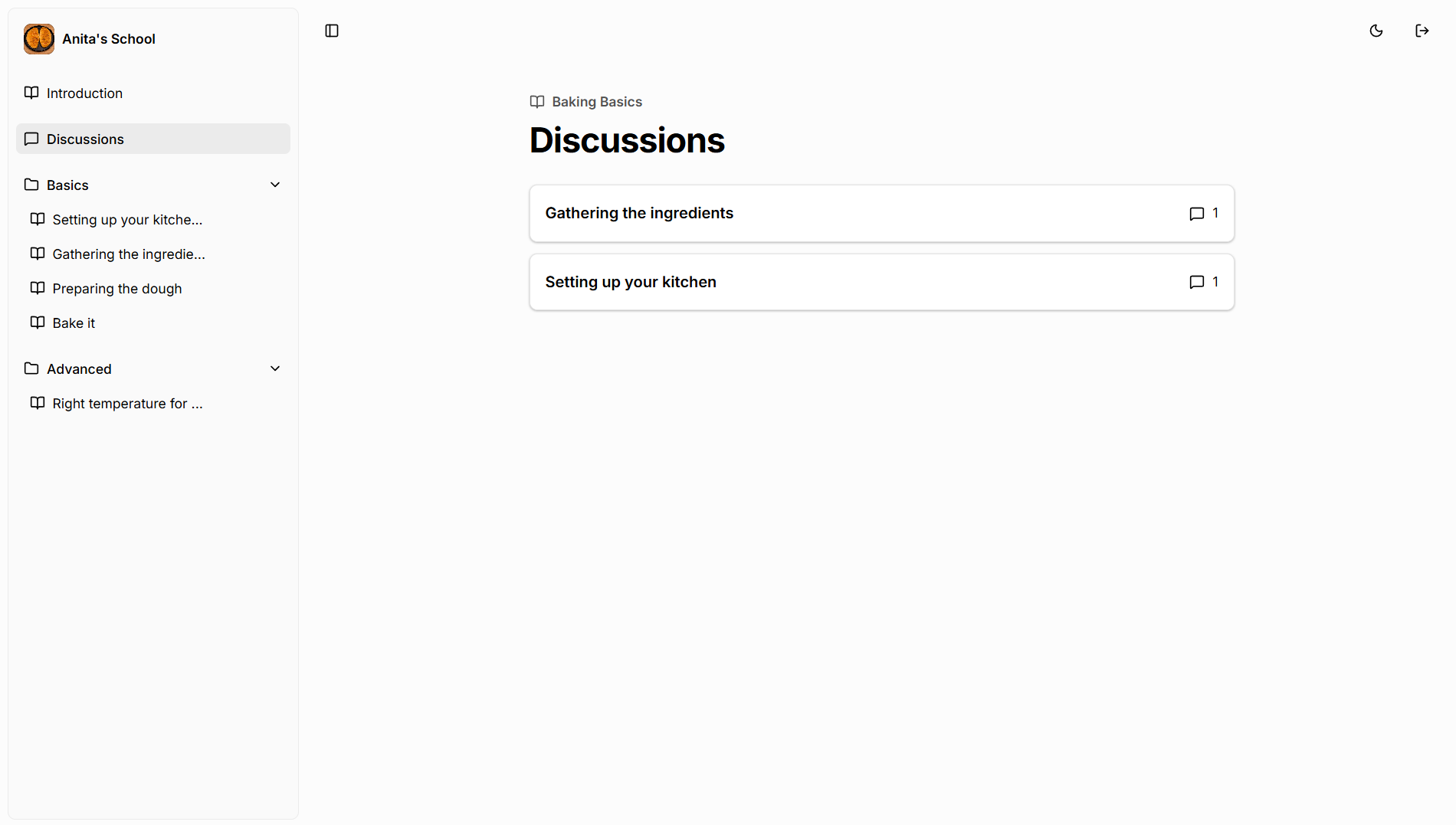
Click the Discussions link in the sidebar to see an overview of every lesson discussion in the course. Each row shows the lesson name and the number of comments and replies.
Click a lesson row to go directly to that lesson with the discussion panel open.
Notifications
When someone comments or replies in a lesson discussion you participated in, you will receive an in-app and email notification. Click the notification to land on the exact lesson with the relevant comment or reply scrolled into view and highlighted.
Product admins also receive in-app and email notifications for all new discussion activity across the course.
Managing notification preferences
You can control which discussion events trigger notifications and which channels (app or email) they are sent through.
- Go to Dashboard → Notifications.
- Under the General section, find the two discussion preferences:
- Course Discussion Comment Created — notifies you when a new comment or reply is posted in a discussion you are part of.
- Course Discussion Reacted — notifies you when someone likes your comment or reply.
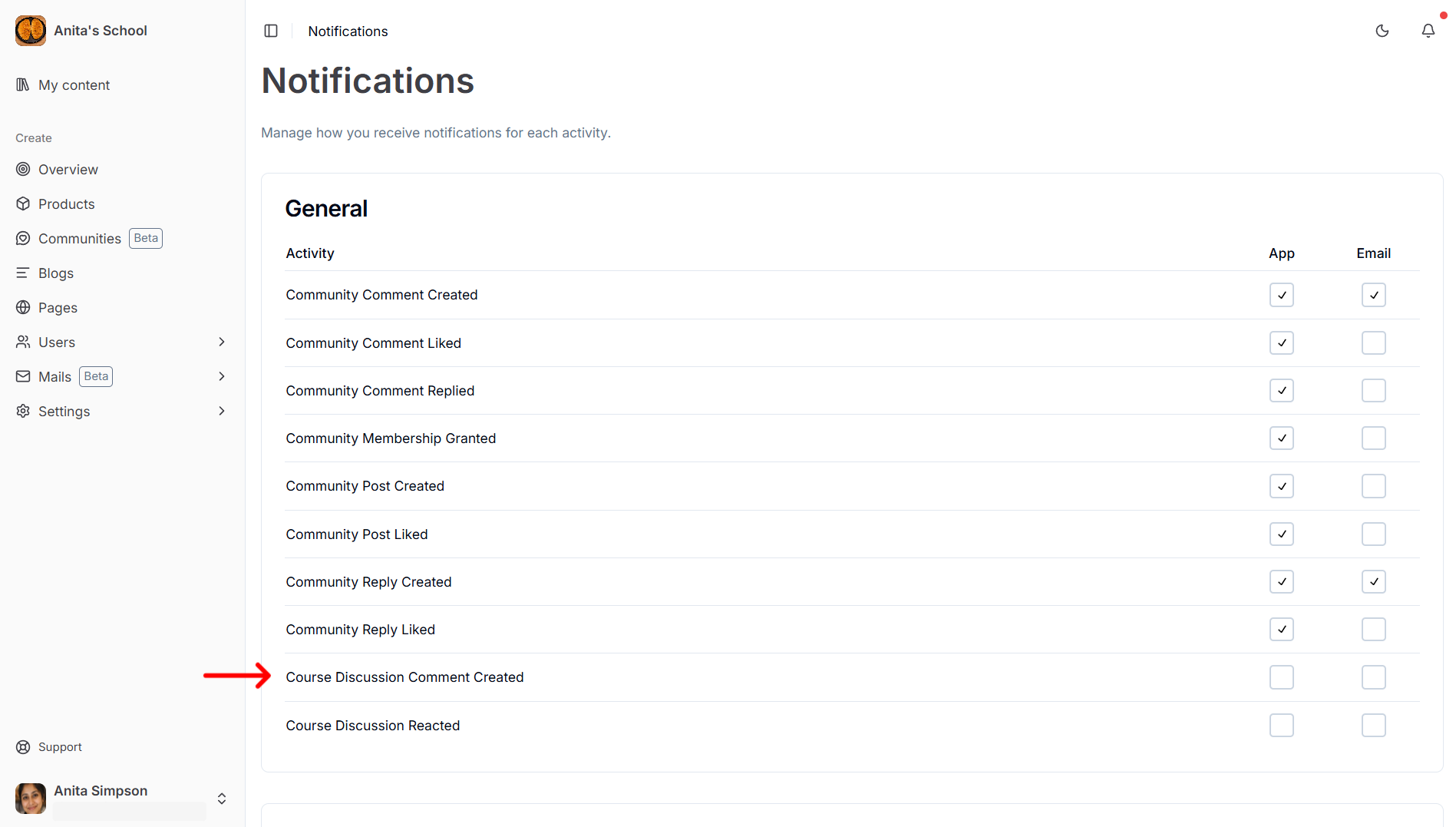
- Check or uncheck the App and Email columns for each preference to enable or disable that channel.
Moderation (product admins)
Reviewing reported content
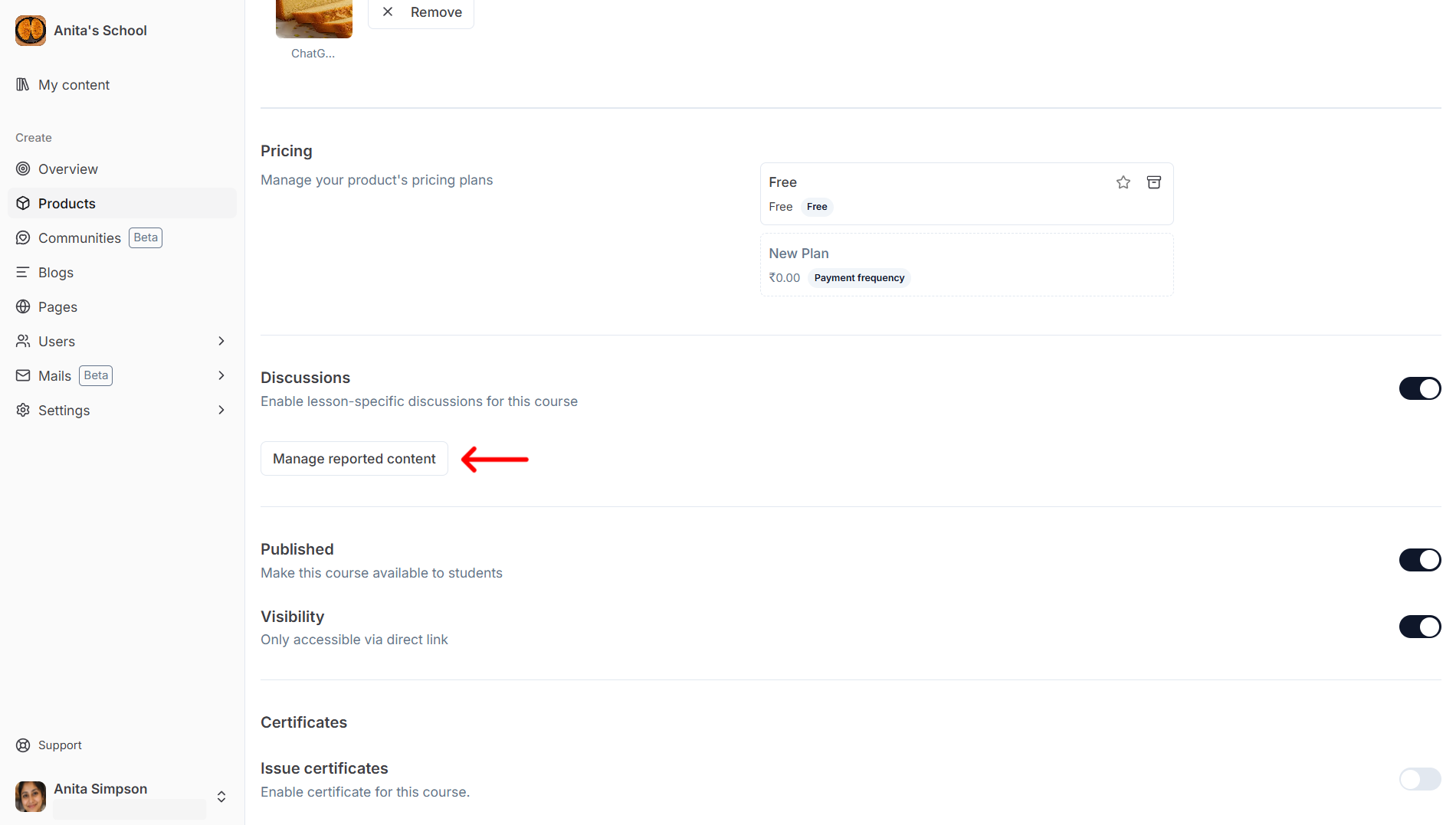
- Go to Dashboard → Products and open your course.
- Click Manage, then open Discussions → Reported Content.
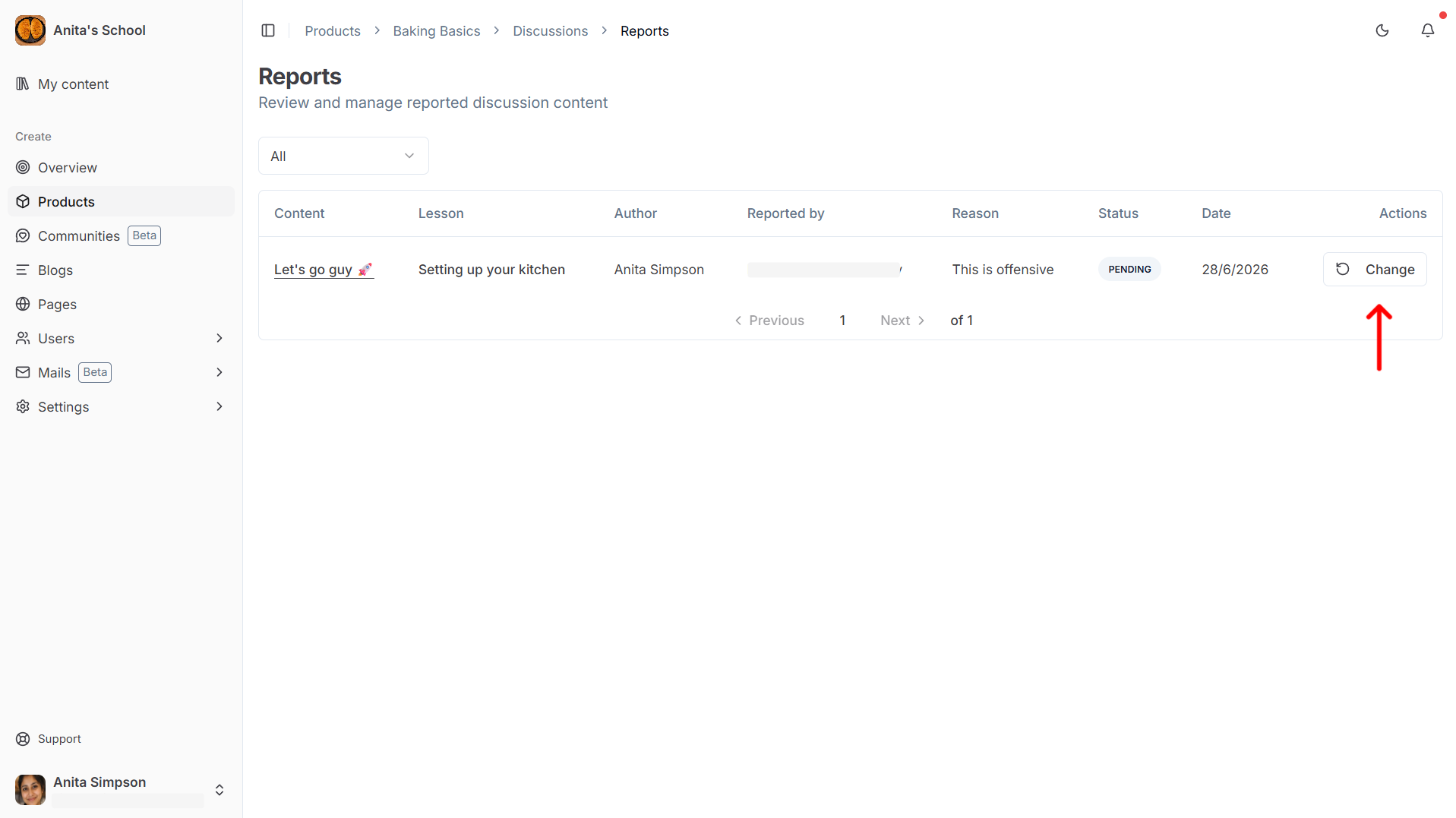
- You will see a list of reported comments and replies with the original content, the report reason, and the current status.
- Click Change next to an item to update its status:
- Pending — under review, no action taken yet.
- Accepted — report is valid; the content is removed from the discussion.
- Rejected — report is invalid; content remains visible.
Participating in discussions as an admin
Product admins participate in discussions through the course viewer, not the dashboard. Open the course in the viewer and use the discussion panel as a normal participant. You can comment, reply, like, and delete your own content.
Stuck somewhere?
We are always here for you. Come chat with us in our Discord channel or send a tweet at @CourseLit.